Contents
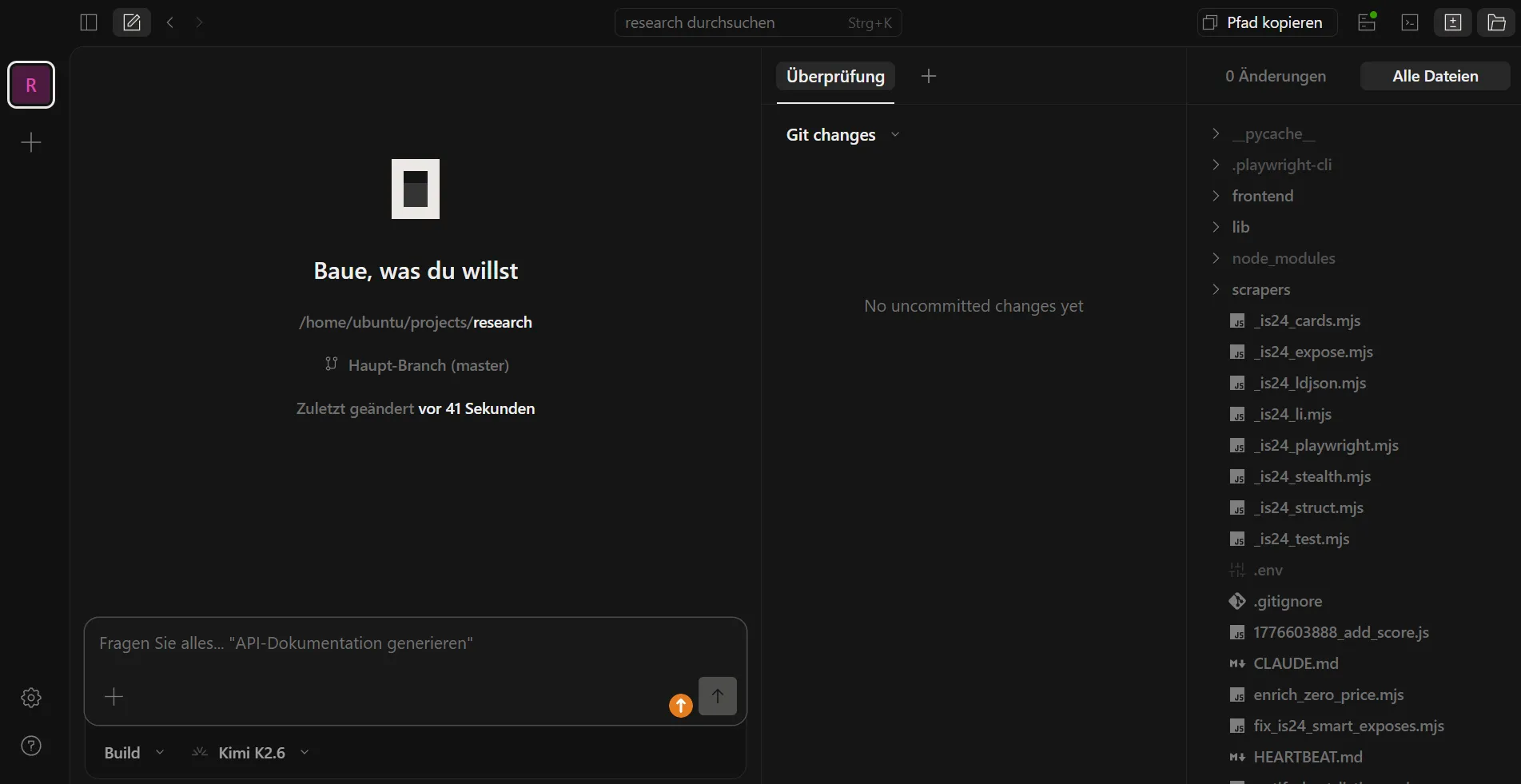
I wanted to use OpenCode from my phone without keeping an SSH session open. Turns out OpenCode ships a web UI and a proper server mode, so it pairs naturally with Tailscale. Now I just open a browser tab and it’s there.
Prerequisites
- A VPS with OpenCode installed (
~/.opencode/bin/opencode) - Tailscale running on the VPS and your other devices
- Basic familiarity with systemd user services
Step 1: Start OpenCode in server mode
OpenCode binds to 127.0.0.1 by default. To also accept connections on the Tailscale interface, bind to 0.0.0.0:
opencode --hostname 0.0.0.0 --port 4096The web UI is then available at http://<tailscale-ip>:4096. Find your VPS’s Tailscale IP with tailscale ip.
Step 2: Lock down the port
Port 4096 should be reachable from Tailscale only, not the public internet.
If you use UFW (the default on most Ubuntu VPS images), add a single rule:
sudo ufw allow in on tailscale0 to any port 4096Raw iptables commands can get wiped when UFW restarts or updates, so this is the safer path on UFW systems.
If you manage iptables directly (no UFW), add these rules:
sudo iptables -A INPUT -i lo         -p tcp --dport 4096 -j ACCEPT
sudo iptables -A INPUT -i tailscale0 -p tcp --dport 4096 -j ACCEPT
sudo iptables -A INPUT               -p tcp --dport 4096 -j DROP
Persist them so they survive a reboot:
sudo apt install iptables-persistent
sudo sh -c 'iptables-save > /etc/iptables/rules.v4'
Step 3: Run it as a systemd user service
Create ~/.config/systemd/user/opencode.service:
[Unit]
Description=OpenCode Server
After=network-online.target
Wants=network-online.target

[Service]
ExecStart=/home/ubuntu/.opencode/bin/opencode --hostname 0.0.0.0 --port 4096
Restart=on-failure

[Install]
WantedBy=default.target
After=network-online.target matters here: without it, the service can start before firewall rules are applied and briefly expose port 4096 publicly.
Enable and start:
systemctl --user daemon-reload
systemctl --user enable --now opencode
Then enable linger so the service keeps running without an active SSH session:
loginctl enable-linger ubuntuStep 4: Open it on your phone
- Open Tailscale on your phone and confirm the VPS appears as connected.
- Navigate to
http://<tailscale-ip>:4096in a browser.
That’s it. No login screen, no tunneling tricks. Tailscale handles access control.
One thing to be clear about: there is no authentication layer beyond Tailscale itself. Any device on your Tailscale network can reach OpenCode, which has access to your API keys and your project files. The default Tailscale ACL allows all devices to talk to each other, so if you share your tailnet with others or have devices you don’t fully trust, tighten your ACLs before doing this.
Verify the port isn’t public
Run this from the VPS to confirm the public IP can’t reach port 4096:
curl -s -o /dev/null -w "%{http_code}" --connect-timeout 5 http://$(curl -s ifconfig.me):4096It should time out (exit code 28). A returned status code means the iptables rules aren’t applied.
Useful commands
systemctl --user status opencode       # service status
journalctl --user -u opencode -f       # live logs
systemctl --user restart opencode      # restart after config changes
opencode attach http://localhost:4096  # connect a TUI to the running server
One thing worth knowing: if you add new skills or agents to OpenCode, the server won’t pick them up automatically. A quick systemctl --user restart opencode is all it takes.
Tailscale encrypts everything end-to-end with WireGuard, so HTTPS would be redundant. I skipped it. If you need clipboard access or other browser features that require a secure context, it’s worth revisiting, but for everyday use this is fine.